With the current epidemic situation, children around the world have to get used to and change their online learning method, also known as online learning. Instead of before, they could go to school directly from teachers and friends, now all children have to learn indirectly through computer screens or phones. Such indirect learning, if prolonged for too long, will affect the eyesight of young children. Understanding the concerns and worries of parents, We will share methods to protect and reduce bad effects on eyes when children study online.
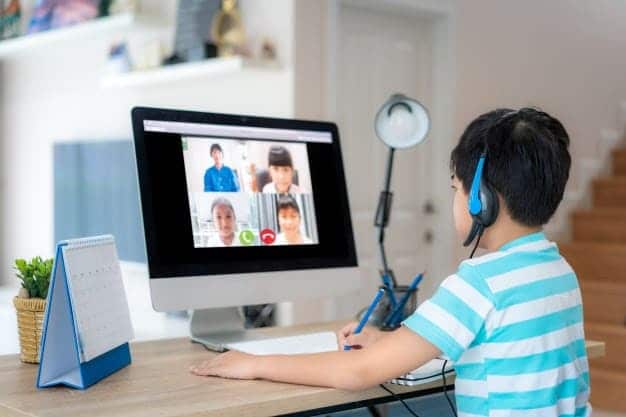
Adjust your sitting posture when studying online
Sit and study with your head and back straight (no tilt or bow), shoulders down, legs slightly stretched, creating an angle between shins and thighs about 90-130 degrees. The upper body and thighs create an opening angle of 90-120 degrees (by adjusting the tilt of the backrest of the chair). It is best to adjust this angle at 100-110 degrees because in this position it will reduce pressure on the spinal discs and reduce adverse effects on the spine.
To protect eyes, the distance from the eyes to the smartphone or tablet screen is about 35-40 cm; with the computer between 40-74 cm. It is appropriate to be able to test the distance from the eye to the computer screen by the length of an arm. If the device is placed in the wrong position, the wrong sitting posture can lead to discomfort, stress, fatigue, pain in the neck and shoulders, eye strain, eye irritation, blurred vision, dry eyes and headaches. If that process is prolonged, it is likely to lead to musculoskeletal injuries.
Display settings on good for eye protection
To avoid the eyes having to adjust too much, adjust the brightness of the screen to match the surrounding environment, not too bright or too dark. You should also equip a table lamp or screen spotlight to avoid the screen being too bright compared to the adjacent area.
When you keep the text small, your eyes must stretch to the fullest to see the text better, and you will tend to lean closer to the screen. This will be very harmful to your eyes when you have to work like this for a long time. So when working with documents, to protect your eyes, you should enlarge the text for easy reading. By holding down the Ctrl key and rotating the mouse gear up, the text will be enlarged, zoom in until you feel comfortable to read.
Note to always keep the screen clean: Regularly clean and wipe with specialized solutions to keep the computer screen clean, avoiding dust and dirt flying into the eyes when in close contact.
Ensure light for eyes when learning online
Lighting is an important factor in the arrangement of the classroom, so place the study table in a place where there is natural light during the day, not a place where direct sunlight will cause glare.
The device light is just right for the classroom light.
To protect the eyes, it is necessary to choose a lamp with white light, which will help children reduce eye fatigue and damage their eyes.

Create good habits to protect your eyes when studying online
Implement the 20/20/20 rule: Parents should guide their children to follow the 20/20/20 rule, that is, after 20 minutes of sitting in front of the computer, look at something for 20 seconds 20 seconds away. ft (6.1 meters). This will help the eyes and nervous system relax, preventing eye damage.
Blink frequently and use eye drops: In addition to the above rule, frequent blinking is also important when sitting for long periods in front of the computer. Blinking slowly can help prevent dry eyes.
In addition, moisturizing with eye drops will clean the eye, wash away foreign objects, and keep the conjunctival and corneal surfaces of the child always clean.
Limit blue light impact on eyes
Using high resolution screen type, led screen to prevent blue light. In addition, you can also install and use software to reduce harmful effects from blue light such as F.lux or Twilight. Besides, you should regularly clean the screen to avoid dust and dirt to make the display sharper.
Apply the 20:20:20 rule
On average, we will blink once every 4-6 seconds, but if we have to work directly with the computer, our eyes will have to strain to focus more, leading to dry eyes. So when you have to sit in front of the computer a lot, you need to blink often to avoid dry eyes, or you can use artificial tears.
Also apply the 20:20:20 rule (every 20 minutes looking at the computer, look 20 feet away for 20 seconds). Every 1-2 hours working in front of the computer should let your eyes relax for 5-10 minutes to reduce eye fatigue.
Eye exam 1-2 times/year
Whether you often work with computers or not, it is still a good idea to have an annual eye exam to detect and prevent some eye diseases . For people with refractive errors, once every 6 months, they need to go to the doctor to have their glasses adjusted properly. In addition, it is necessary to choose reputable eye examination addresses, avoid self-treatment at home.
Create useful outdoor activities
Adjust your sitting posture when studying online
Sit and study with your head and back straight (no tilt or bow), shoulders down, legs slightly stretched, creating an angle between shins and thighs about 90-130 degrees. The upper body and thighs create an opening angle of 90-120 degrees (by adjusting the tilt of the backrest of the chair). It is best to adjust this angle at 100-110 degrees because in this position it will reduce pressure on the spinal discs and reduce adverse effects on the spine.
To protect eyes, the distance from the eyes to the smartphone or tablet screen is about 35-40 cm; with the computer between 40-74 cm. It is appropriate to be able to test the distance from the eye to the computer screen by the length of an arm. If the device is placed in the wrong position, the wrong sitting posture can lead to discomfort, stress, fatigue, pain in the neck and shoulders, eye strain, eye irritation, blurred vision, dry eyes and headaches. If that process is prolonged, it is likely to lead to musculoskeletal injuries.
Display settings on good for eye protection
To avoid the eyes having to adjust too much, adjust the brightness of the screen to match the surrounding environment, not too bright or too dark. You should also equip a table lamp or screen spotlight to avoid the screen being too bright compared to the adjacent area.
When you keep the text small, your eyes must stretch to the fullest to see the text better, and you will tend to lean closer to the screen. This will be very harmful to your eyes when you have to work like this for a long time. So when working with documents, to protect your eyes, you should enlarge the text for easy reading. By holding down the Ctrl key and rotating the mouse gear up, the text will be enlarged, zoom in until you feel comfortable to read.
Note to always keep the screen clean: Regularly clean and wipe with specialized solutions to keep the computer screen clean, avoiding dust and dirt flying into the eyes when in close contact.
Ensure light for eyes when learning online
Lighting is an important factor in the arrangement of the classroom, so place the study table in a place where there is natural light during the day, not a place where direct sunlight will cause glare.
The device light is just right for the classroom light.
To protect the eyes, it is necessary to choose a lamp with white light, which will help children reduce eye fatigue and damage their eyes.
Create good habits to protect your eyes when studying online
Implement the 20/20/20 rule: Parents should guide their children to follow the 20/20/20 rule, that is, after 20 minutes of sitting in front of the computer, look at something for 20 seconds 20 seconds away. ft (6.1 meters). This will help the eyes and nervous system relax, preventing eye damage.
Blink frequently and use eye drops: In addition to the above rule, frequent blinking is also important when sitting for long periods in front of the computer. Blinking slowly can help prevent dry eyes.
In addition, moisturizing with eye drops will clean the eye, wash away foreign objects, and keep the conjunctival and corneal surfaces of the child always clean.
Limit blue light impact on eyes
Using high resolution screen type, led screen to prevent blue light. In addition, you can also install and use software to reduce harmful effects from blue light such as F.lux or Twilight. Besides, you should regularly clean the screen to avoid dust and dirt to make the display sharper.
Apply the 20:20:20 rule
On average, we will blink once every 4-6 seconds, but if we have to work directly with the computer, our eyes will have to strain to focus more, leading to dry eyes. So when you have to sit in front of the computer a lot, you need to blink often to avoid dry eyes, or you can use artificial tears.
Also apply the 20:20:20 rule (every 20 minutes looking at the computer, look 20 feet away for 20 seconds). Every 1-2 hours working in front of the computer should let your eyes relax for 5-10 minutes to reduce eye fatigue.
Eye exam 1-2 times/year
Whether you often work with computers or not, it is still a good idea to have an annual eye exam to detect and prevent some eye diseases . For people with refractive errors, once every 6 months, they need to go to the doctor to have their glasses adjusted properly. In addition, it is necessary to choose reputable eye examination addresses, avoid self-treatment at home.
Create useful outdoor activities
Outdoor activities are one of the most effective ways to protect eyes, especially for nearsightedness. In studies from around the world, especially Singapore, it has been found that children who spend more time outdoors tend to be less likely to be nearsighted. So, for children to spend time outdoors, it is very important to see distant objects. Time spent outdoors in the sun is also beneficial for the body's health with increased vitamin D production, enhanced immunity and emotional well-being. Moreover, activities with games or family parties outdoors will help children feel comfortable and relax after stressful school hours.
Supplement good nutrition for eyes
A well-balanced diet is extremely important for our health , especially for children. All vitamins and micronutrients are important for the body, but there are mainly some vitamins and micronutrients that are especially important for eye protection. These include vitamin A, vitamin C , vitamin E, lutein, zeaanthin, and omega fatty acids. These substances are found naturally in foods such as carrots, beets, mangoes, papayas, citrus fruits, green leafy vegetables, almonds, walnuts, eggs, fish… It is best to give your children foods This vitamin is in its natural form rather than given in supplements.
Nhận xét
Đăng nhận xét