Hello, today, I will guide you how to use the Ricoh MP 5002 photocopier User Manual. This is a guide for the Mp5002 series, but only for the Mp5001 and Mp 5000 series, the usage is the same.
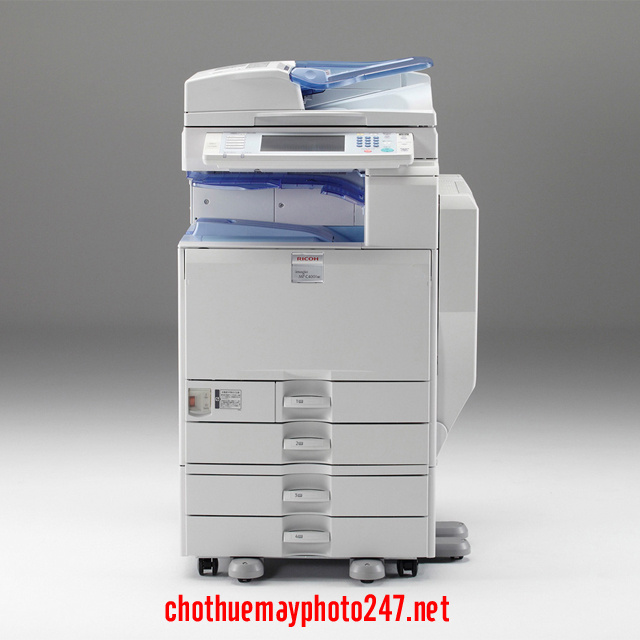
Let's Get Started Ricoh Photocopier User's Guide
First you choose to enter copy mode, this is the screen of this copier, the first thing we will see is the paper tray icon marked on picture 2 –

Normally, if the machine has all 4 paper trays and 1 manual tray, also known as paypass, but with little demand, you only need to use 2 trays because these trays can be adjusted to print from A5 to large sizes. A3
Next, the second row marks the number 3 you are interested in, because it is the icon that we can zoom in and out, it will enlarge from A3 to A4 or A4 to A3 depending on the type is 71 %. corresponds again from A3 to A4, and 141 % defaults to A4 to A3 –
Ricoh 5001 Photocopier user manual as well as high capacity machine
In addition, you can also adjust this part to make it higher, this one I will guide to zoom in and out in the next post, see here:
The third part is the symbol related to the part of the paper marked with the number 6, such as folding two single-sided sheets into a 2-sided sheet or from 1 2-sided sheet to a 2-sided sheet or proof copy mode. letters or papers folded into one sheet, two folded into a copy of a book, for example
In addition, if you have other functions, I will learn later > The fourth row in figure 7 in here is related to the division arrangement, of course I am in soft mode (dividing). set), it's already sorted, but if you don't choose soft, it won't sort the photos by default.
For example, if you have a book that you do not choose at this time, you will have to re-select it, which takes a lot of time and effort - Ricoh Copier User Manual
So now you choose to skip here when you choose to miss like this, it will copy each set one by one, you just have to count the number of sheets and then pin it. That was the first case of fever that I regretted.
The second is the horizontal rotation like this when the fever rotates horizontally like this, ie the first set it rotates along the second set, it will rotate horizontally. I just understand it as simple as that, if you guys do it like this, when you pick up the stapler, it's very fast, because it will make him look like you look.
In cases like this, you, your paper, will have to have two of the same size. For example, this size A 4, you are placing it vertically like this, this size must also be taken and you have to put it horizontally, that's the case.
When you choose to choose this second missing arrangement, that is, the rotational arrangement, there is also a section next to the brothers and sisters on this side, it is related to your degree, copy bold or light or but by default. - Ricoh copier user manual
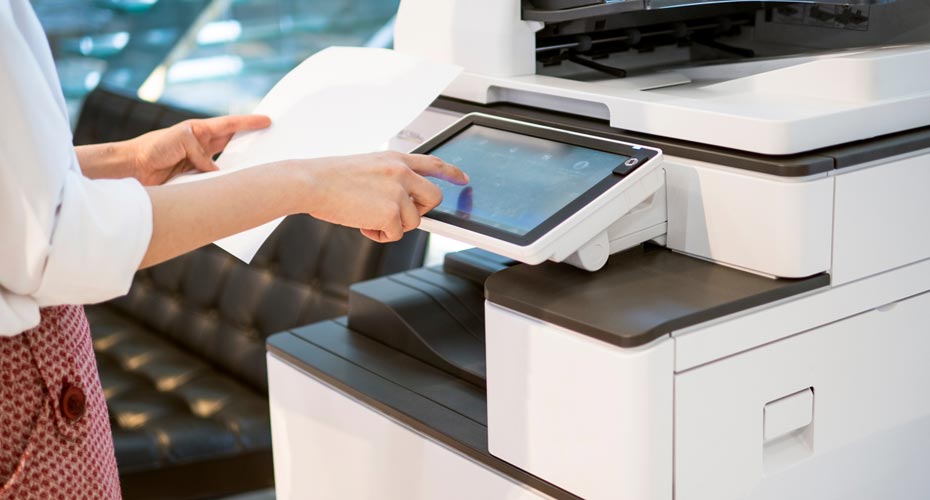
The first is text mode. The second team, tech auto, has both pictures and text. About the third mode on the photo mode, the fourth mode is the trace mode, this mode, the mode that we need to copy something related to the color it is not encouraged, especially the invoice then you can choose this mode and the last thing you care about on this side is the lightness, enlargement, lightness, lightness.
Saying below, there is one that you rarely use. In the case of the latter, you will need to make a copy that is related to the part that is backwards. When the face transplant car is merged, you will choose that in this part, this is the whole thing on the screen and briefly with the screen of the copier that B 50020002.
What about the part on this side that is the part that the keyboard, the hardware keyboard means? It is related to the problem of asking you to install or edit or change the number of prints. For example, now I can change, for example, I can copy all of these, it is on this side, and the part on this side is the hardware keyboard for hop by mode. or touch mode.
Ricoh 5001 - mp5000b . RICOH Photocopier User Manual
In addition to the date above, you can choose the modes directly on these hard keys instead of having to press the key here. For example, now I choose avocado, but I choose to scan it here and then praise or above, this is because I haven't considered it,
Even this hard shield according to the value for lines 5 0, 0, 2 and above, all these keys, all these movies, I can match for it, it is number one, it is a cop ball or number one , can be printed or can be touch ken.
This is that I have not considered, there will be a few. I will show you how to look at that part. However, today will cover the entire keyboard part of the keyboard and the screen of this copier.
Next, I will show you how to make copies? It will have some sites for you to study. Thank you guys for following.
Ricoh MP 5002 and mp5001 . Photocopier User Manual
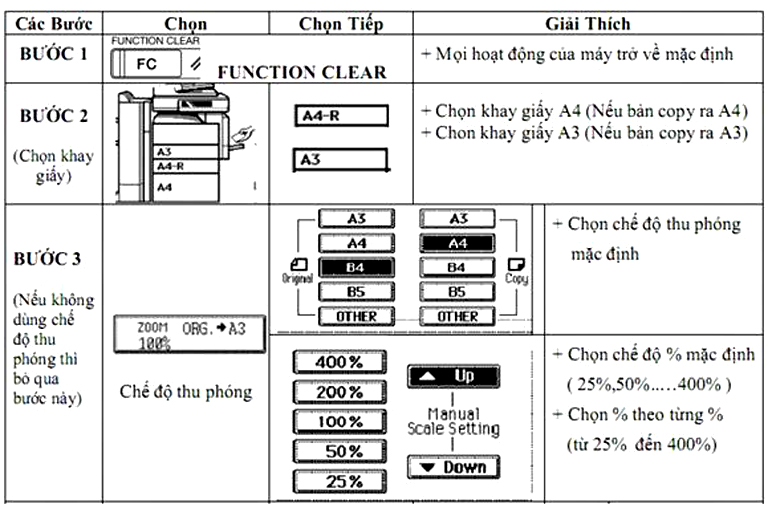
There is one more function that I often use in the office that I forget to instruct, which is the Sort function. Remember to press the Sort function on the screen when taking a photo with a large number of pages. -
With this function, you will not waste time rearranging the order of pages after photo. When you want to make a large number of photos, after choosing the photo mode, you need to press the number of sheets to be copied (number series on the right). You can use the 2-sided photo function to copy ID cards, driver's licenses..
After choosing 2-sided photo mode, you copy 1 side and then turn the other side, it will be two sides without needing to reverse the paper. If you have any questions, please comment below and I will explain. Good luck
Nhận xét
Đăng nhận xét